5 Easy Steps to Wipe Your Devices Before Trading Them In
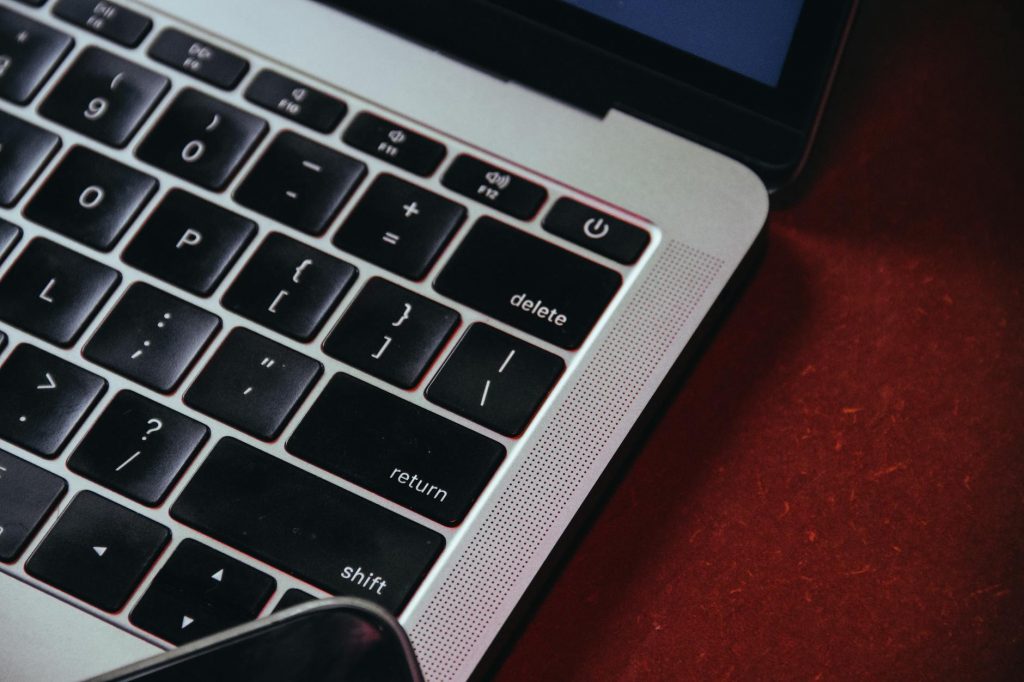
Before you trade in or sell your old devices, wiping them clean is a crucial step to protect your personal information. Phones, tablets, and laptops store sensitive data—everything from emails and photos to bank accounts and passwords. Simply deleting files isn’t enough, as traces of your data can remain. Follow these five easy steps to securely wipe your devices before trading them in.
Step 1: Back Up Your Data
Before wiping your device, make sure to save all your important files, photos, and settings. For smartphones and tablets, you can back up your data to cloud services like iCloud, Google Drive, or OneDrive. This ensures that you can transfer your data seamlessly to a new device.
For laptops, copy important files to an external hard drive, USB drive, or a cloud storage service. Double-check that everything you need—documents, photos, and application data—is safely stored.
Try BuckUp Today
We’re offering up to $500 Instant Cash for your devices.
Step 2: Sign Out of Accounts and Disable Security Features
Signing out of your accounts prevents the device’s next owner from accessing your personal information. Start by logging out of services like iCloud, Google, or Microsoft accounts. For Apple devices, you’ll also need to turn off “Find My iPhone” or “Find My Mac” to remove the activation lock.
On Android devices, sign out of your Google account and disable any linked security features. For laptops, log out of cloud services, email accounts, and browsers. Removing access to these services ensures your device can be safely wiped and reused.
Step 3: Perform a Factory Reset
A factory reset wipes all user data from your device and restores it to its original settings. For smartphones and tablets, this option is usually found in the “Settings” menu under “General” or “System.” On iPhones, go to Settings > General > Transfer or Reset iPhone > Erase All Content and Settings. For Android devices, navigate to Settings > System > Reset > Erase All Data.
For laptops, the process varies based on the operating system. On Windows, go to Settings > Update & Security > Recovery, and choose the option to reset your PC. On macOS, restart your Mac while holding Command + R, open Disk Utility, and erase the main drive before reinstalling macOS.
Step 4: Remove External Devices and Storage
After resetting your device, make sure you’ve removed any external storage or accessories. For laptops, eject USB drives, SD cards, or external hard drives. For smartphones and tablets, remove SIM cards and memory cards, which may still store personal information.
Taking this step ensures nothing is left behind when you trade in or sell your device.
Step 5: Double-Check and Power Down
Once you’ve completed the factory reset and removed any external storage, it’s time to double-check. Power the device back on to confirm that no personal information remains. The startup screen should look like it did when you first purchased the device—asking for language, region, and account setup.
If everything looks clean, power down the device and prepare it for trade-in. For added peace of mind, you can use specialized software to securely erase data beyond what a factory reset accomplishes, especially on laptops.
Final Thoughts
Wiping your devices before trading them in is essential for protecting your privacy and ensuring a smooth transition for the next owner. Backing up your data, signing out of accounts, performing a factory reset, and double-checking for external storage are simple steps that make a big difference.
At BuckUp, we ensure that your devices are handled responsibly, whether they’re refurbished, recycled, or resold. When you’re ready to trade in, you can rest easy knowing your personal information is secure and your old tech is going to good use. Start today and see how much your device is worth!